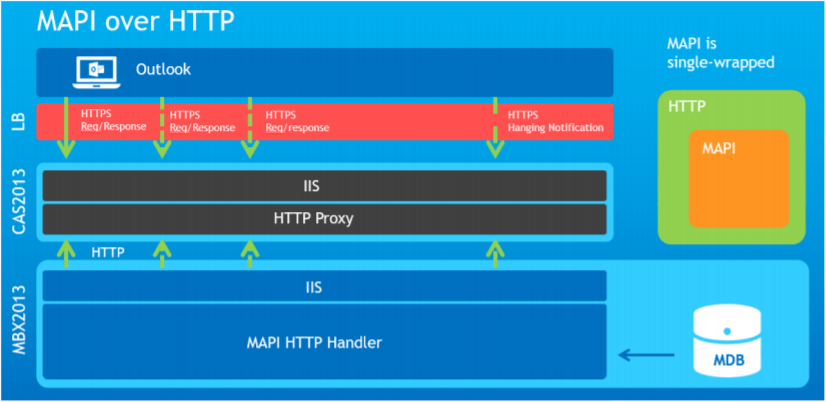
Exchange 2013 MAPI over HTTP(S)
MAPI over HTTP(S) Implementation Steps:
Requirements/Prerequisites |
Server Requirements: | All Exchange 2013 Client Access Servers to be updated to Exchange Server 2013 SP1 (or later). |
| |
Client Requirements: | Outlook 2013 SP1 or Outlook 2010 SP2 with updates KB2956191 and KB2965295 (April 14, 2015). |
| |
.NET | .NET 4.5.1 |
| |
Namespace: | MAPI/HTTP is a new endpoint on CAS and can utilize both an internal namespace and an external namespace. |
| |
Certificates: | The certificate used in Exchange will need to include both the internal and external MAPI/HTTP virtual directories to avoid any user certificate prompts, thus consider if the names exist on your certificates. |
| |
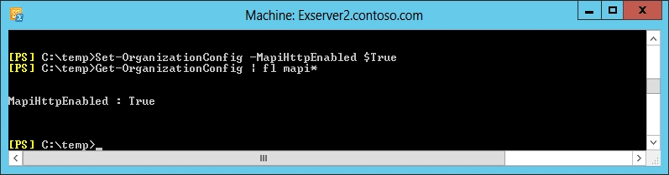
Enable MAPI/HTTP Configuration: | Enabling MAPI/HTTP is an organizational configuration in Exchange, you won’t have the ability configure this for a subset of servers. If you require more specific control you can control the client behavior with a registry key. Get-OrganizationConfig | fl mapi* Set-OrganizationConfig -MapiHttpEnabled $True
|
| |
Connectivity: | An important consideration is to verify load balancers, reverse proxies, and firewalls are configured to allow access to the MAPI/HTTP virtual directories. |
| |
IIS Authentication | NTLM,Negotiate |
| |
Virtual directory configuration | Set-MapiVirtualDirectory –Identity “MSEXCHCAS01\mapi (Default Web Site)” -InternalUrl https://mapi.example.com/mapi –ExternalUrl https://mapi.example.com/mapi -IISAuthenticationMethods NTLM,Negotiate |
Testing – Test MAPI over HTTP connections |
1. Test with the Test-OutlookConnectivity cmdlet
Use this command to test MAPI/HTTP connectivity:
Test-OutlookConnectivity -RunFromServerId Contoso -ProbeIdentity OutlookMapiHttpSelfTestProbe
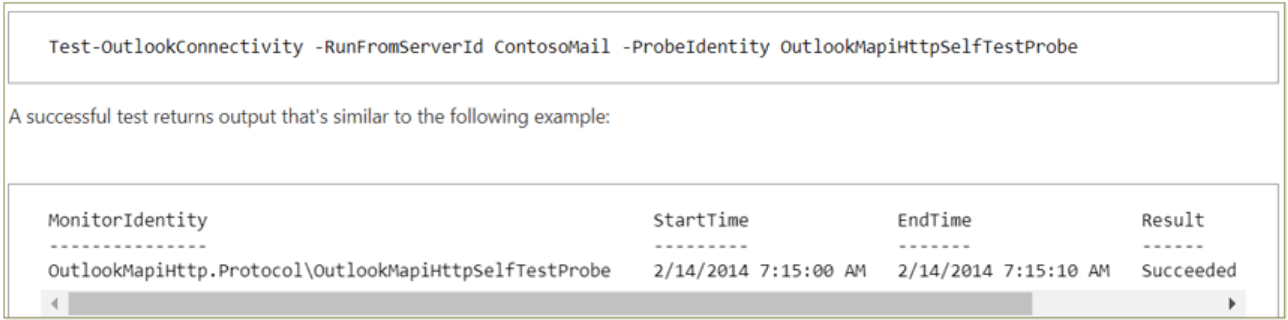
Ref:https://technet.microsoft.com/en-us/library/dn635177(v=exchg.150).aspx
2. Inspect MAPI/HTTP server logs
Administrators can review the following MAPI/HTTP log files to validate how the configuration is operating:
Location | Path |
CAS: | %ExchangeInstallPath%Logging\HttpProxy\Mapi\HTTP |
Mailbox: | %ExchangeInstallPath%Logging\MAPI Client Access\ |
Mailbox: | %ExchangeInstallPath%Logging\MAPI Address Book Service\ |
3. Check Outlook connection status on clients
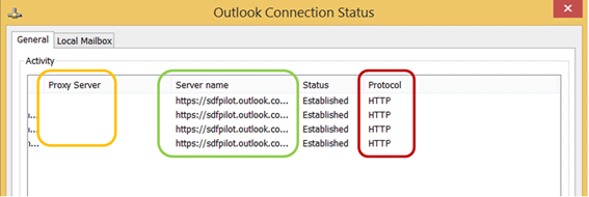
You can also quickly verify that the client is connected using MAPI/HTTP. The Outlook Connection status dialog can be launch by CTRL-right clicking the Outlook icon in the notification area and selecting Connection Status. Here are the few key fields to quickly confirm the connection is using MAPI/HTTP.
Field | Value |
Protocol | HTTP (v/s RPC/HTTP for Outlook Anywhere) |
Proxy Server | Empty |
Server name | Actual server name (v/s GUID for Outlook Anywhere connections) |
Rollback Plan |
We should not need to roll anything back, as Outlook 2013 will see the AutoDiscover XML payload (either EXPR or EXCH records) and then adjust / connect accordingly.
We can force Mapi/Http to be disabled by the clients by modifying the registry entries. Using EPO/SCCM the registry can be pushed to clients.
To disallow MAPI/HTTP and force RPC/HTTP to be used. | HKEY_CURRENT_USER\Software\Microsoft\Exchange] “MapiHttpDisabled”=dword:1 |
To allow MAPI/HTTP simply delete the MapiHttpDisabled DWORD, or set it to a value of 0 as below. | HKEY_CURRENT_USER\Software\Microsoft\Exchange] “MapiHttpDisabled”=dword:0 |
If users are not able to connect using MAPI/HTTP then we need to check if the below registry is exists with the value “1” then we need to either change the value to “0” or delete it.
Impact |
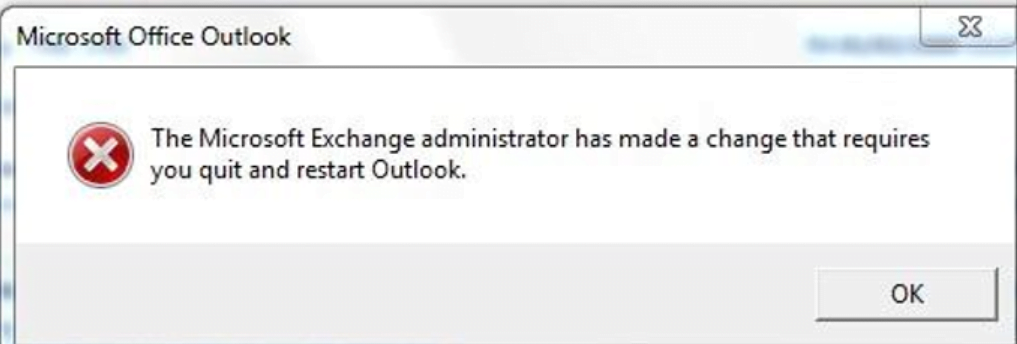
Users will get a prompt to restart outlook. Outlook client detects the new connection path and prompts the user to restart, then it will use MAPI/HTTP to communicate with Exchange.
If MAPI over HTTP is enabled at the organization level but disabled for a mailbox, that mailbox will use Outlook Anywhere connections.
The following example enables MAPI over HTTP connections for a single mailbox:
Set-CasMailbox “mailbox name” -MapiHttpEnabled $true